How to Start Mass Tariff Classification
Mass tariff classification is a powerful feature that allows you to classify large sets of products efficiently. This guide will walk you through the steps to get started with mass tariff classification.
Step 1️⃣: Prepare Your Data

Before you can start classifying products, you need to prepare your data as an Excel (.xlsx) file. The header row (row 1) is always ignored. Use Download Example File in the upload dialog to get a ready-to-use template.
| Column | Field | Required | Accepted values |
|---|---|---|---|
| A | Product description | yes | free text |
| B | Reference ID | optional | free text — used to match your own records, and to match attachments (see Step 3). Must be unique. |
| C | Search web (true/false) | optional | true/false, yes/no, ja/nein, 1/0, on/off (case-insensitive); anything else or empty is treated as false |
| D | Direction | optional | export/import, ex/im, exportieren/importieren (case-insensitive); empty or unrecognized values default to export |
| E | URL | optional | one URL per row, fetched during tariffing |
| F | Country of origin | optional | free text or ISO country code — relevant for the US tariff, where many additional duties depend on the country of origin |
Rows with an empty description column are skipped. The number of rows you can import is limited by your tenant's remaining customs tariff proposal quota, not by a fixed row or file size limit — if the quota is exhausted, the import fails.
Step 2️⃣: Upload Your Data and Create the Job

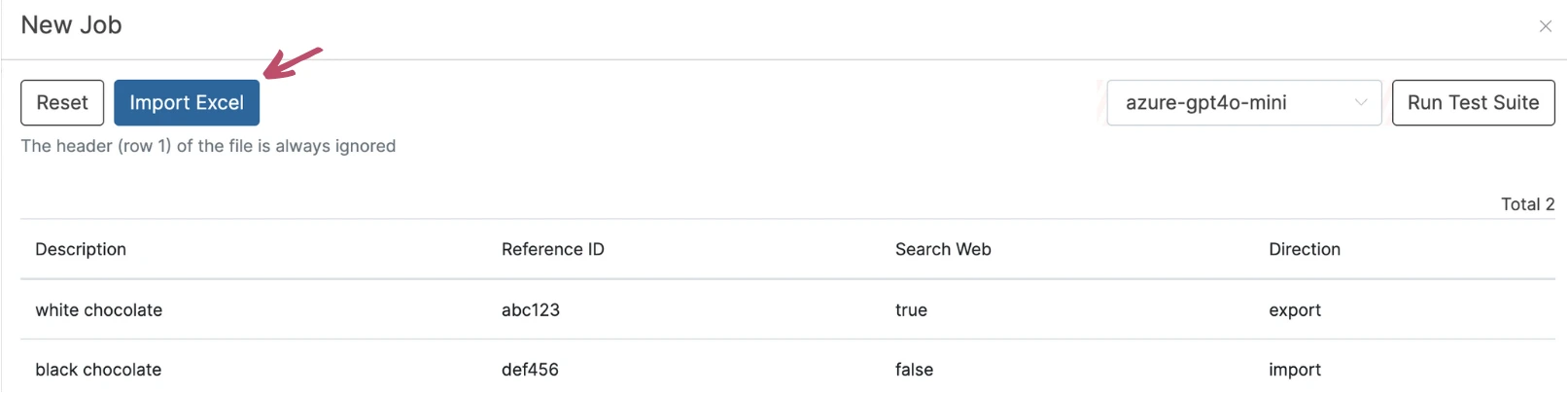
Navigate to Mass in the Customs Tariff menu group — Zolltarifierung > Masse in the German UI — and click New Job. On the new job page, select your Excel file and click Check Excel to preview the parsed rows (the preview shows up to the first 100 rows). Next, select the Tariff System the whole file should be classified against — EU/DE, CH or US — this is required and applies to every row in the file; there is no more separate LLM/model selection. Finally, click Import Excel to create the job.
Step 3️⃣: Upload Files and Start Tariffing

After the import you land on the job page. Here you can upload supporting documents (PDFs, images, Office documents or text files) for individual rows before the classification starts: drop files into the large drop zone and they are matched to the row whose reference_id the file name starts with, or upload directly per row via the Files column (there the file name does not matter). You can attach up to 3 files per entry. The same view lists the parsed rows with their reference IDs and, where set, the country of origin. Click Start Tariffing to begin the classification process.
Once classification is running, TariffPilot shows the progress on a separate results page. You can see, per row, the classified product, its tariff code, and the tariff system (DE/EU, CH or US) it was classified against.
Step 4️⃣: Track Progress and Handle Intervention
The job list and the results page show a progress bar (Progress: X % (done/total)) and a status per job or proposal:
| Status | Meaning |
|---|---|
| New / Pending | Not processed yet. |
| Processing | Classification is running. |
| Finished | Processing is complete. |
| Insufficient data quality | No reliable code could be determined. |
| Supplementation possible | The information is not sufficient for a reliable classification and the proposal is waiting for your input. |
The colors on the job list help you spot problems: a job turns red when at least 10 % of its proposals have low data quality, and yellow when at least 1 % are low or at least 10 % medium.
For proposals marked as needing supplementation you can open the affected proposal and add the missing information, for example a more detailed goods description, a material, a file or a URL. The classification then continues automatically. Once complete, you can review the results directly in the platform and download them in PDF format for further analysis or record-keeping.