How to Start a New Export Control Classification
This guide explains how to classify goods for export controls (Dual-Use, Armaments) using the ClassificationPilot tool within TariffPilot.
If you prefer to watch a video tutorial, you can find it here in German.
Step 1: Start a New Process
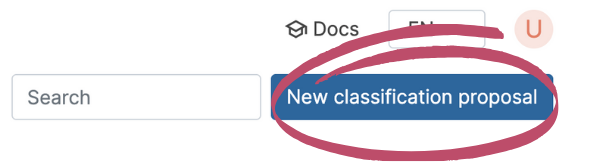
Navigate to the dashboard. Click on the button "New classification proposal".
Step 2: Enter Basic Information
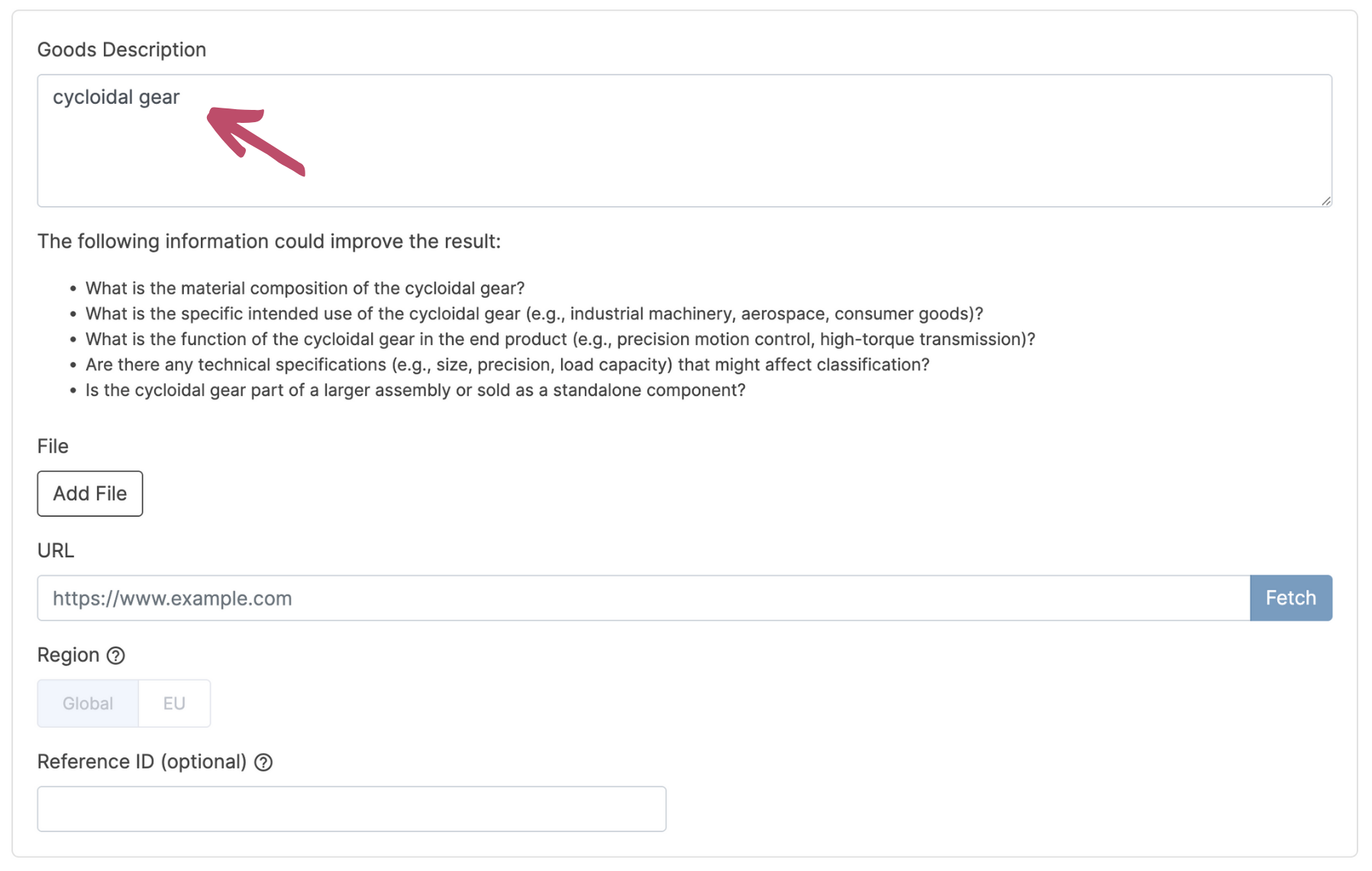
Goods Description: Enter a concise description of the item (e.g., "Cycloidal gear") in the text field. The ClassificationPilot will generate information that could improve the classification results.
-
You can upload up to 3 files or add a URL to improve results. Or use the files or URLs without entering a description.
-
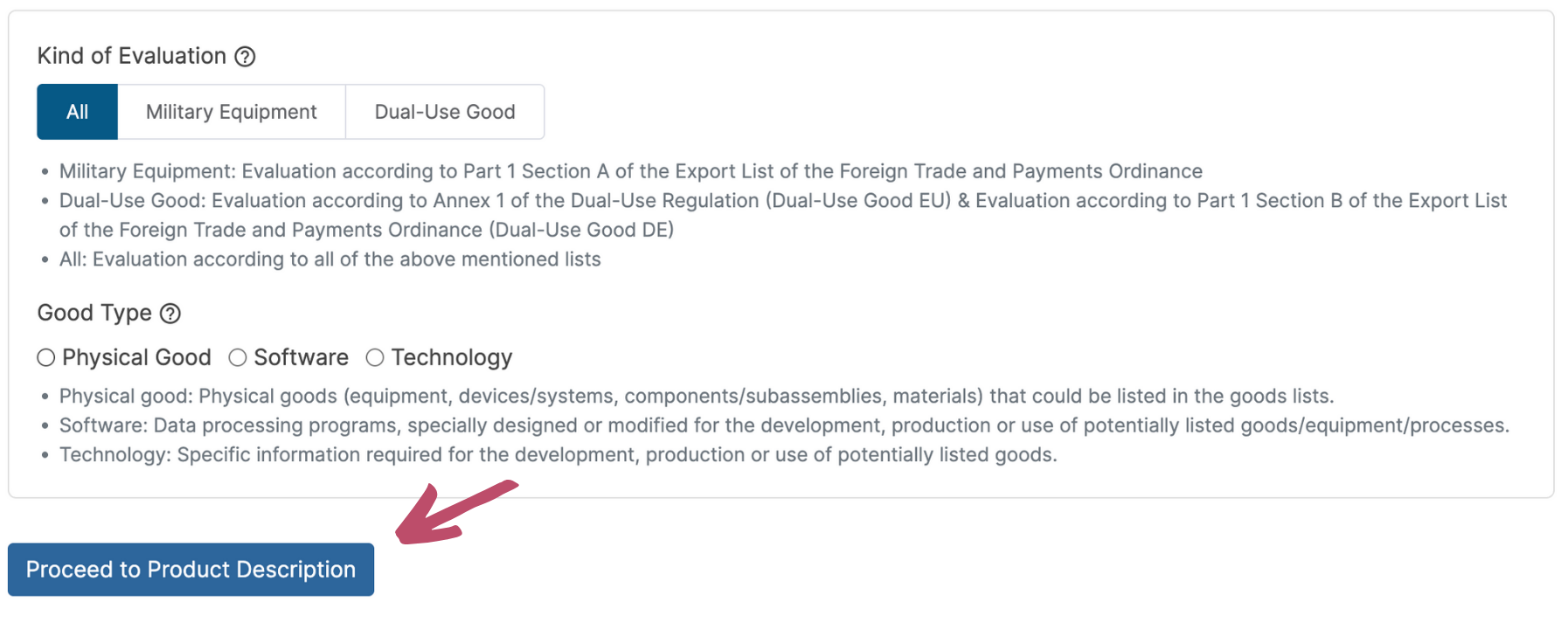
Select what to check for: Armaments, Dual-Use, or All.
-
Select the Type of Good: Choose between Physical Goods, Software, or Technology.
-
CN Code: Enter if known. This is optional but helps the system generate valid results.
-
State of Good: Select if it is a Main Good or Component.
-
Area of Application: Type in the industry or use case (e.g., "Mechanical Engineering").
-
Click "Proceed to Product Description".
Step 3: Review and Edit Goods Profile
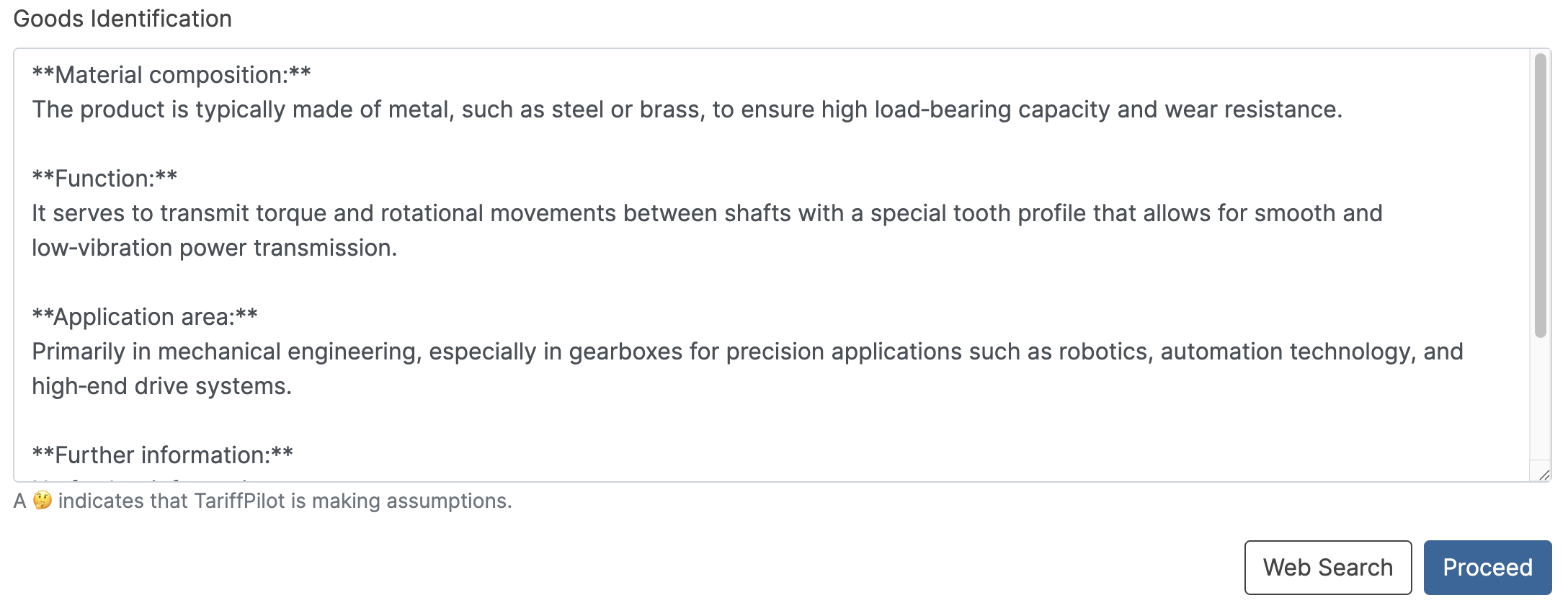
The system generates a "Goods Profile" – a text summary resembling a "wanted poster" for your item. Review the text: Ensure the information is as precise as possible.
Edit manually: The text field is fully editable. You should delete generic information and keep only specific, relevant details to ensure a valid classification proposal. Click "Proceed".
Step 4: Refinement Loop (Handling Versions)
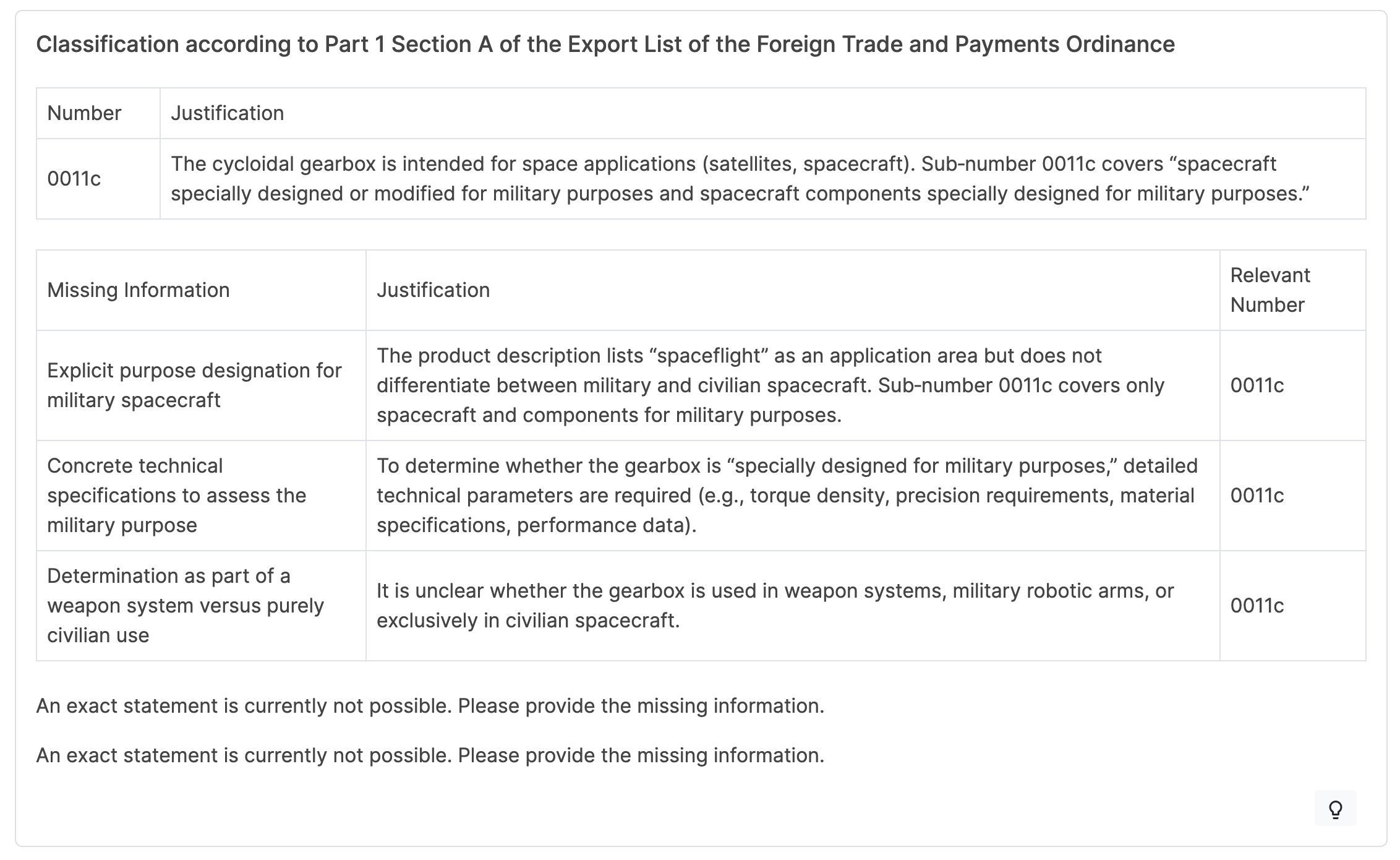
The system will propose a classification. If information is missing (e.g., for a Beryllium ball bearing), you will see a "Missing Information" section.
-
Check Versions: You may see tabs for v1, v2, v3, etc.
-
Provide Missing Info: Look at the "Missing Information" section.
-
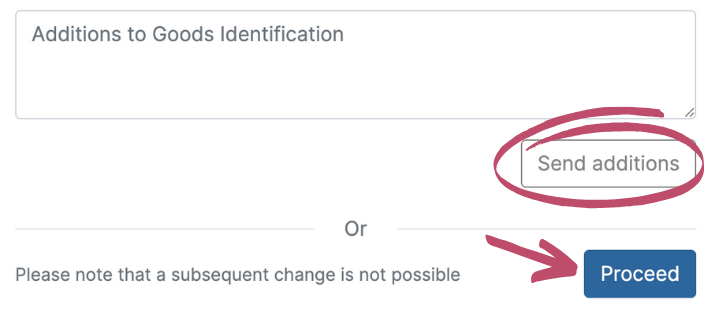
Add Details: Enter the required clarification in the box "Additions to goods description" at the bottom right.
-
Example: Confirming specific material percentages or dimensions.
-
Click "Send additions".
-
Repeat: The system creates a new version. Repeat this process until no information is missing and the criteria are met.
Step 5: Finalize and Export
Once the classification is complete and no info is missing, click "Continue".
You will see the Summary tab.
You can now view the final result and export it as a PDF.