How to Start a New Tariff Classification
This guide shows you how to create a new tariff classification for your product.
If you prefer to watch a video tutorial, you can find it here in English and here in German.
You need to have a TariffPilot account to use it. If you don't have an account yet, you can sign up here.
1️⃣ Click on the New Classification Button in the TariffPilot Dashboard.
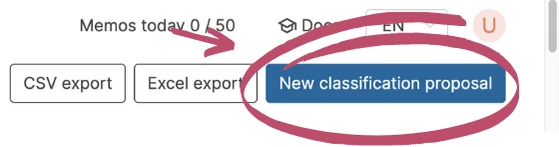
A new PilotMemo will be created, in which you have to enter a detailed product description. The more details you provide, the better the classification will be. You can also attach up to 3 documents to the PilotMemo, or remove a document you already added. Choose whether you want the PilotMemo is for export or import classification — this is pre-filled with your tenant's default direction if one is set (see Tenant Settings).
2️⃣ Click on the Proceed to Product Description Button to Let TariffPilot Analyze the Product.
The TariffPilot tries to identify the good. If you are not satisfied with the results, you can use the web search to find more specific information about the product or simply add more details.
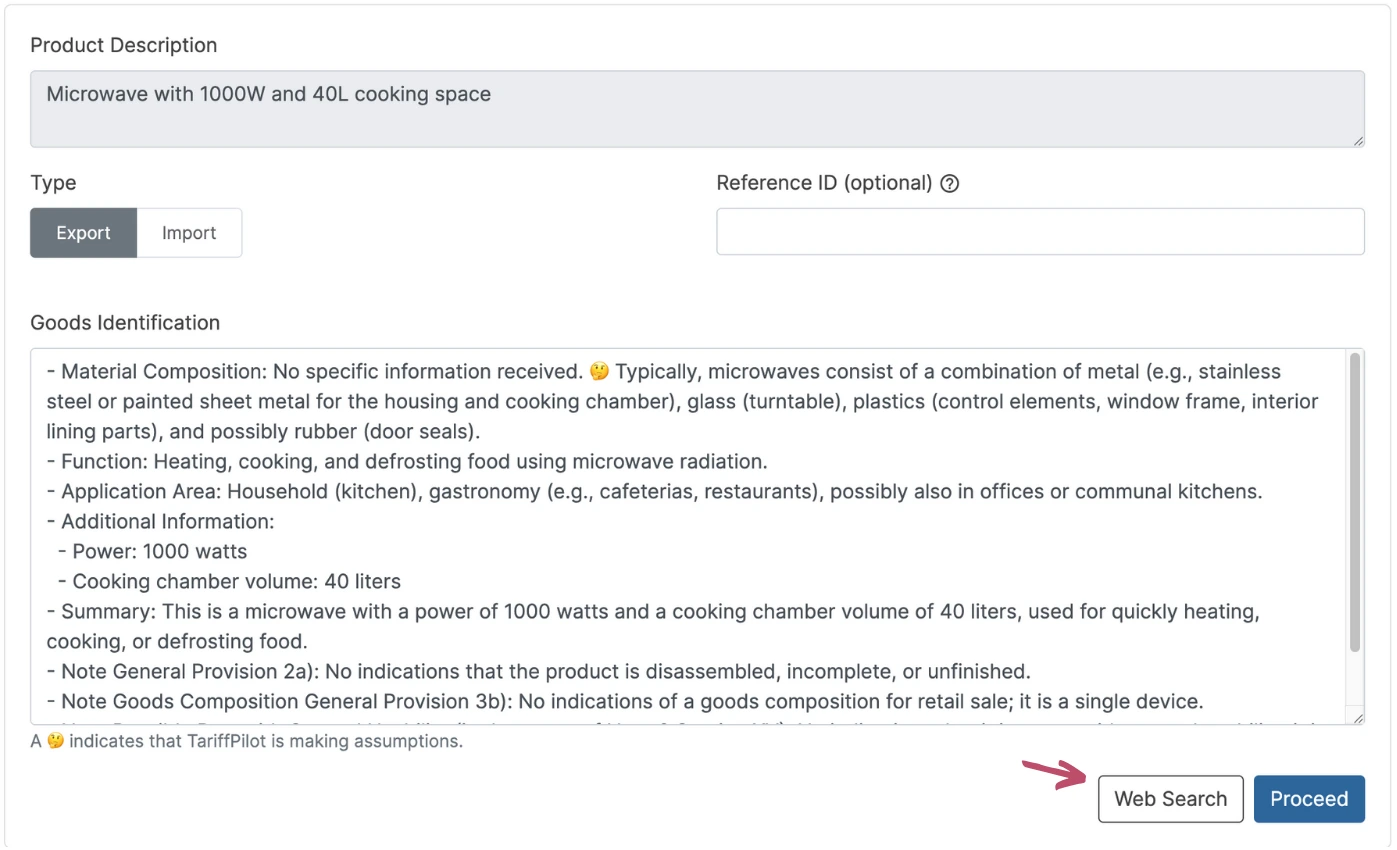
3️⃣ Click on the Proceed Button to Start the Classification Process.
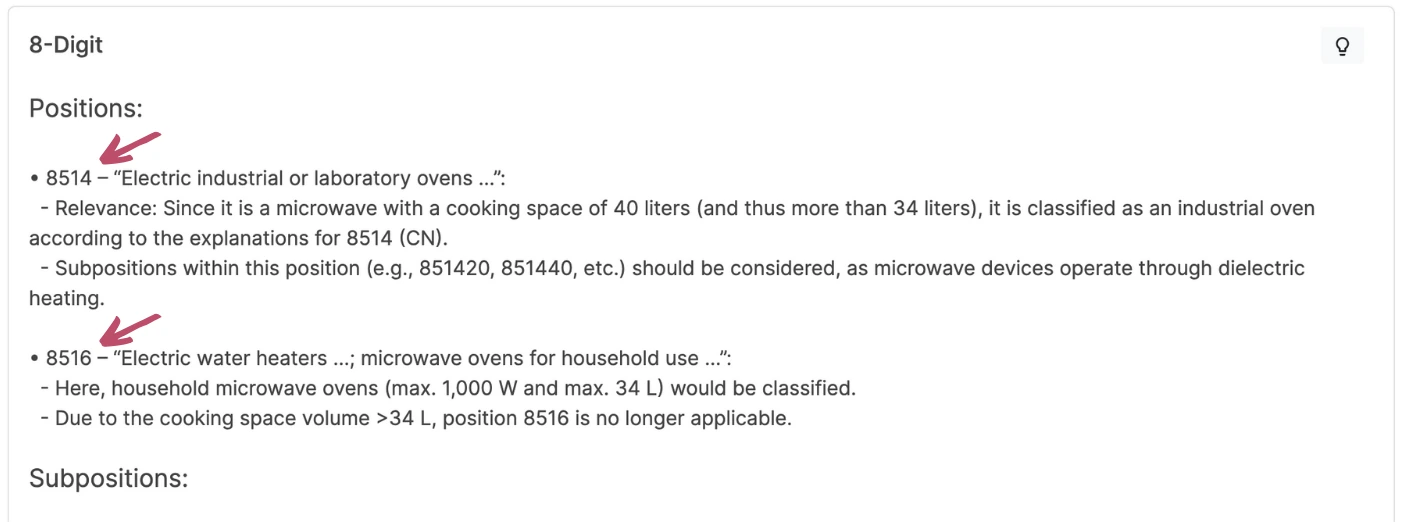
In the next step the EZT Online Database will be used to classify the product. The TariffPilot will search for 3 proposals for position candidates and explain them in detail if they are relevant or not.
4️⃣ Align with BTis
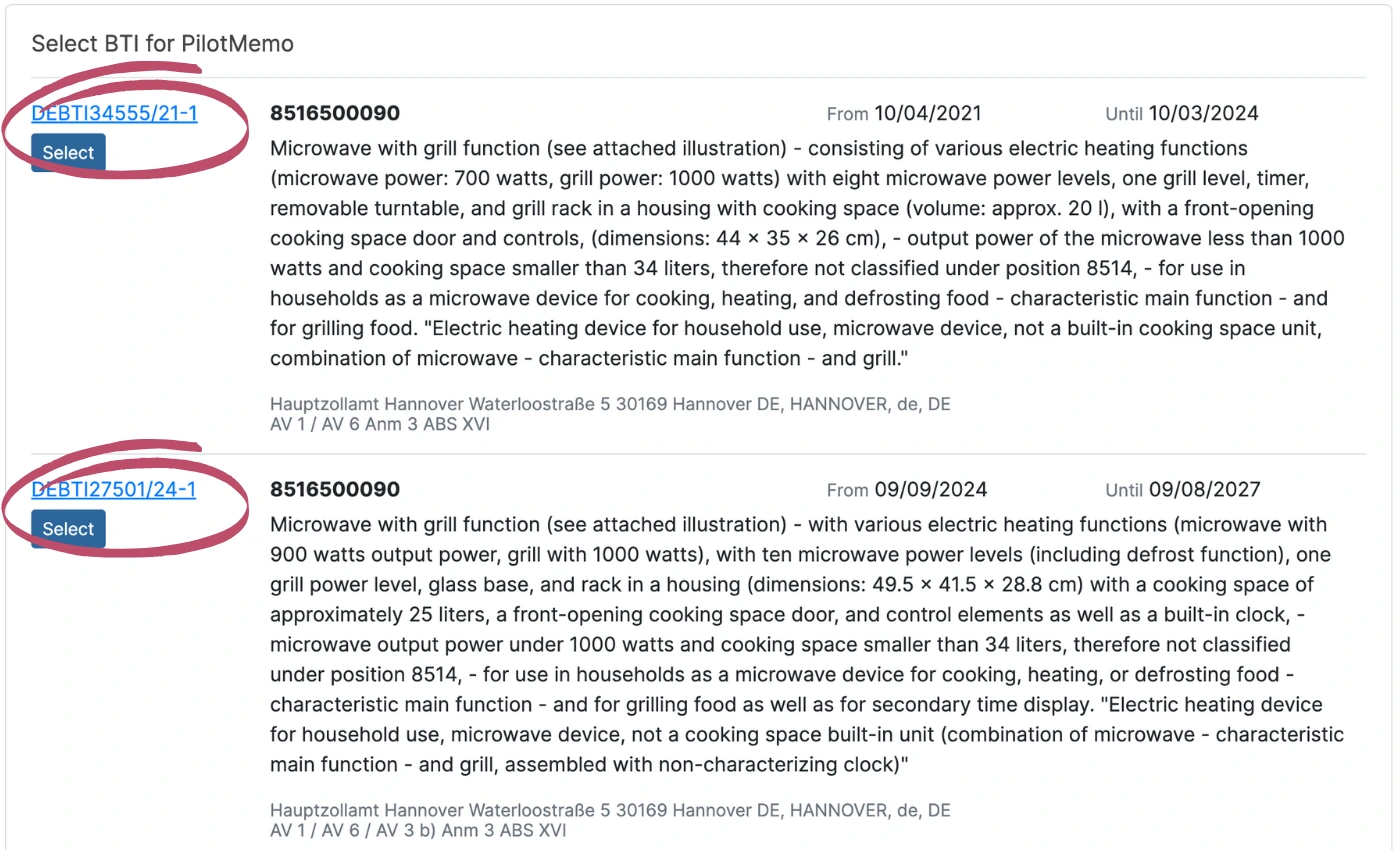
In the next step the TariffPilot will search BTI databank and suggest three BTIs, explain them and argument for or against the original analysis. TariffPilot gives the user a summary and ask, whether the user wants to keep the original code or take the new code based on the BTI.
5️⃣ Align with AI Training
If your tenant has AI Training cases, TariffPilot searches your training database for up to 10 previously validated cases with a similar product description and lists them for comparison. Click Select on a matching case to link it to the current proposal as the case it was decided against. This step is optional — you can proceed without selecting a case, and can remove a selection again later from the summary page.
6️⃣ Summarize the Classification
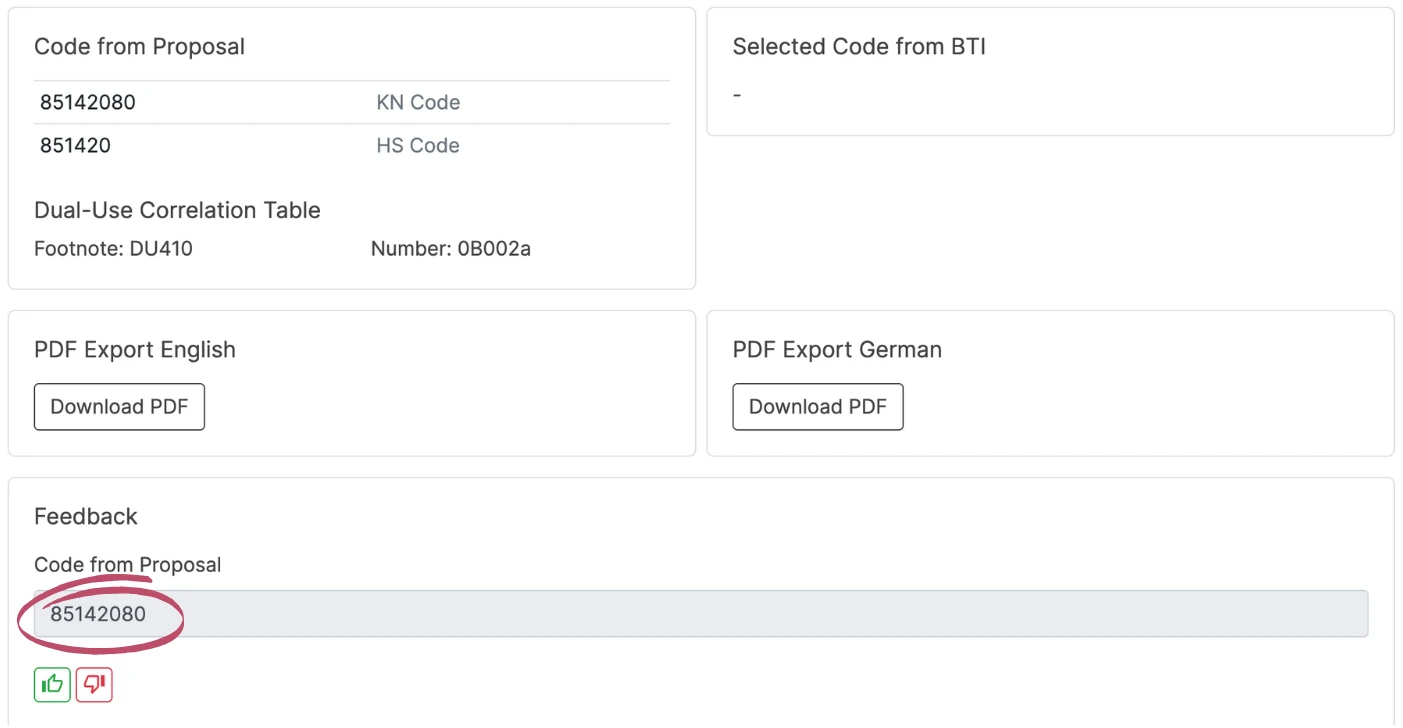
On the summary page TariffPilot shows an overview of the classification process as well as the result, including the AI-generated customs-legal goods description (long and short form, in German and English) and, if you selected one, the linked AI Training case (Database Decision, with a link back to the original case). The user can export the process as a combined PDF in English or German, give feedback, or correct the process and type in the correct code.
In addition to the classification itself, the summary also lists the following regulatory outputs (for the EU/DE tariff system):
- CBAM Relevance — whether the goods are covered by the EU Carbon Border Adjustment Mechanism.
- EUDR Relevance — whether the goods are relevant to the EU Deforestation Regulation, including the relevant
ex-code and heading to check against Annex I where applicable. - Dual-Use Correlation Table — the mapped dual-use control number (
Nummer) and tariff footnote. - KN Revision — if a customs code was replaced or deleted by a later version of the Combined Nomenclature, this is indicated on the summary.
These are shown for information; they do not block the classification result.