AI Training
AI Training (called KI-Training in the German UI) is a tenant-owned database of validated, exemplary customs tariff classifications ("Musterbeispiele"). Each entry pairs a product description with the correct customs tariff code. TariffPilot uses this database to ground new customs tariff proposals in your company's own, previously confirmed decisions — during classification, the AI searches for semantically similar, released training cases and compares its own analysis against them.
Where to find it
Open the Customs Tariff menu group in the left sidebar. AI Training is listed there, next to Single Case and Mass.
Roles
| Role | View list | Upload / release / delete | Export |
|---|---|---|---|
| AI Training Viewer | 👀 | ||
| AI Training Exporter | 👀 | 💾 | |
| AI Training Editor | 👀 | ✏️ | 💾 |
The global Owner and Editor roles also have full access; Revision can view the list. See Invitations and Roles for how to assign these.
Three ways a training case is created
1️⃣ Give a proposal a "thumbs up"
The simplest way: while reviewing a finished customs tariff proposal, use the 👍 (Correct) feedback button. Rating a proposal Correct automatically creates a pending training case (status to validate) from that proposal's description and code. Withdrawing the Correct rating removes the still-pending case again.
A pending case does not yet count for the AI search. Someone with the AI Training Editor role has to open AI Training in the sidebar and click Release for the entry to become active.
2️⃣ Bulk upload via Excel
On the AI Training page, click Excel upload to open the upload wizard:
-
Choose your
.xlsxfile (max. 25 MB). -
Click
Check Excel. TariffPilot previews the first 100 rows and flags potential duplicates:- Same case (red): a training case for the same source proposal already exists.
- High overlap (yellow): a very similar description already exists in the database, with a reference to that entry.
Flagged rows are a warning only — nothing is filtered or merged automatically. You decide whether to import anyway.
-
Select the tariff system the file applies to (
EU/DEorCH) — this is required and applies to the whole file. -
Click
Import Excel. Imported rows are saved immediately with status released (no manual validation step, unlike the thumbs-up path).
The file needs four columns, in this order, with the header row (row 1) always ignored:
| Column | Field | Required |
|---|---|---|
| A | Reference ID | optional |
| B | Customs tariff code | yes |
| C | Product description | yes |
| D | Direction (export / import) | optional |
Rows missing a code or description are skipped. Click Download Example File on the upload dialog for a ready-to-use template in your language.
Limits: up to 50,000 rows per import file; only the first 100 rows are shown in the Check Excel preview. Split larger data sets into multiple files. If your tenant's customs tariff proposal quota is exhausted, the import can fail with a quota error.
3️⃣ Select a matching case while classifying (does not create a new entry)
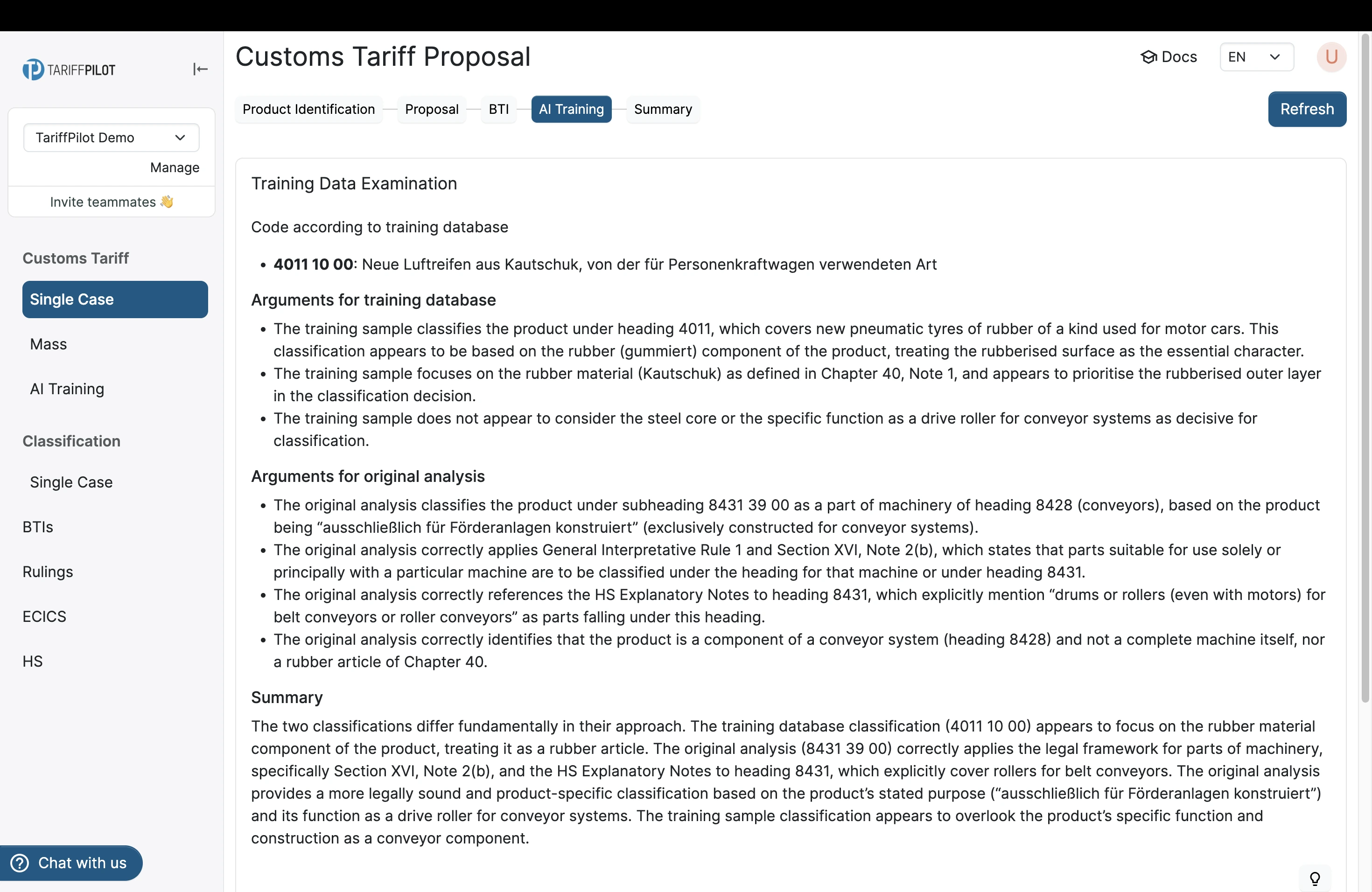
This is the reverse direction: while working through a new customs tariff classification, an AI Training step appears between the ruling step and the summary. It shows up to 10 released training cases that TariffPilot found to be a semantic match for the current product. Click Select on a matching case to link it to the current proposal — this does not create a new training entry, it only records which past case the proposal was decided against.
For a matched case, the step does more than name a code. Under the heading Training Data Examination it sets out the code according to the training database, the arguments for the training database, the arguments for its own original analysis, and a summary weighing the two against each other. It will also argue against a training case: if the stored decision does not fit the product at hand, the step says so and explains why — so a weak entry in your database does not quietly pull the classification in the wrong direction.
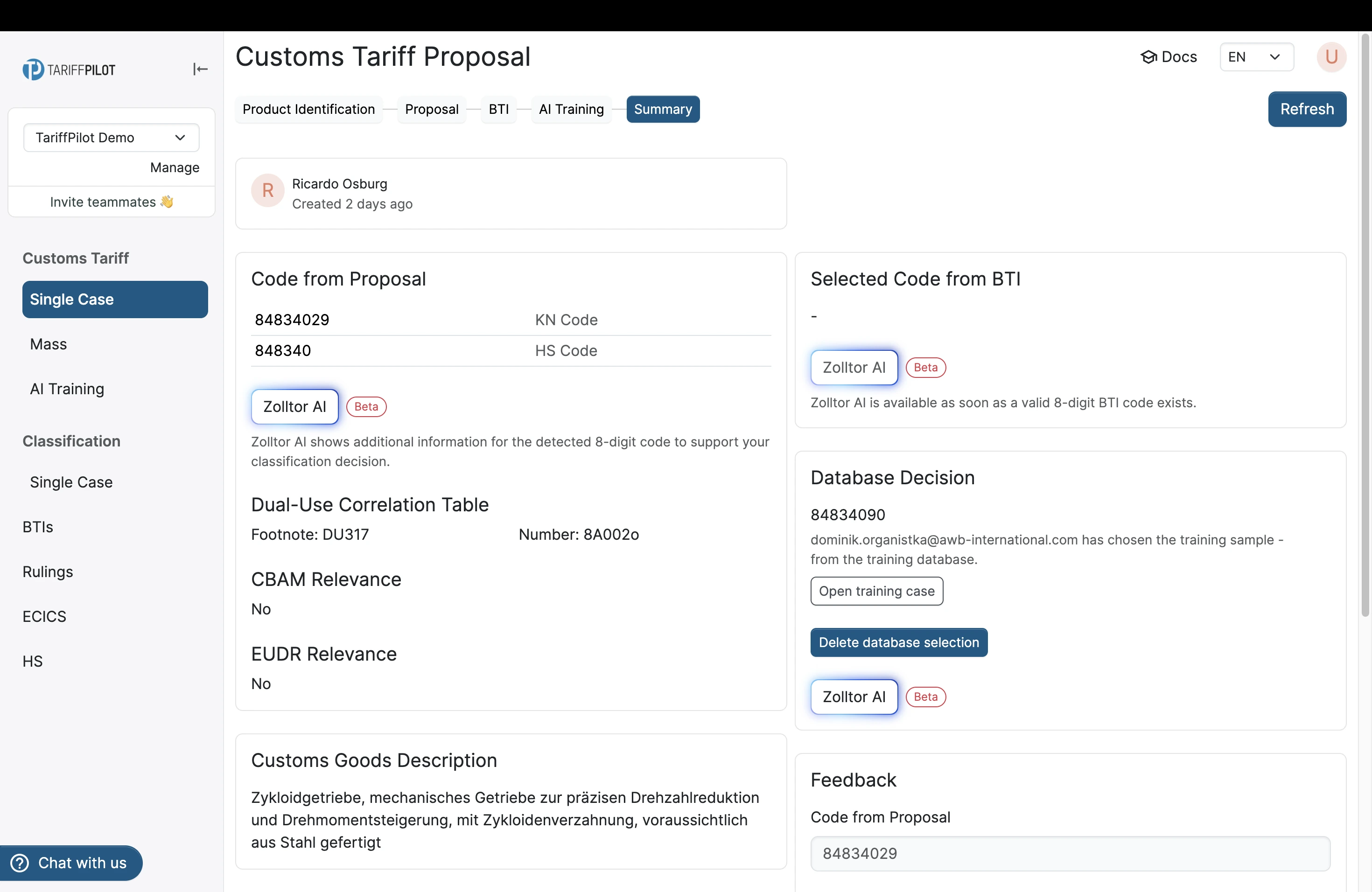
The summary screen then shows a Database Decision card with the linked case, who selected it, and a link back to the original proposal (Open training case). The selection can be removed again with Delete database selection on that same card.
Note: selecting or removing a linked case on a proposal is governed by your Customs Tariff Proposals permissions (e.g. Owner, Editor, or Customs Tariff Proposals Editor), not by the AI Training role above.
From upload to searchable
After a case is created or released (via thumbs-up or Excel upload), two background jobs run automatically before it is usable as a search match:
- Translation — if the description has no English version yet, it is translated automatically.
- Embedding — a search vector is generated from the (translated) description.
This normally completes within a few minutes. Until then, the case is already visible in the AI Training list, but won't yet show up as a suggested match for new proposals.
The AI Training list
The list is the working view of the database. A Status filter narrows it to pending or released cases, Search finds a case by description or code, and the entry count above the table tells you how large the database has grown.
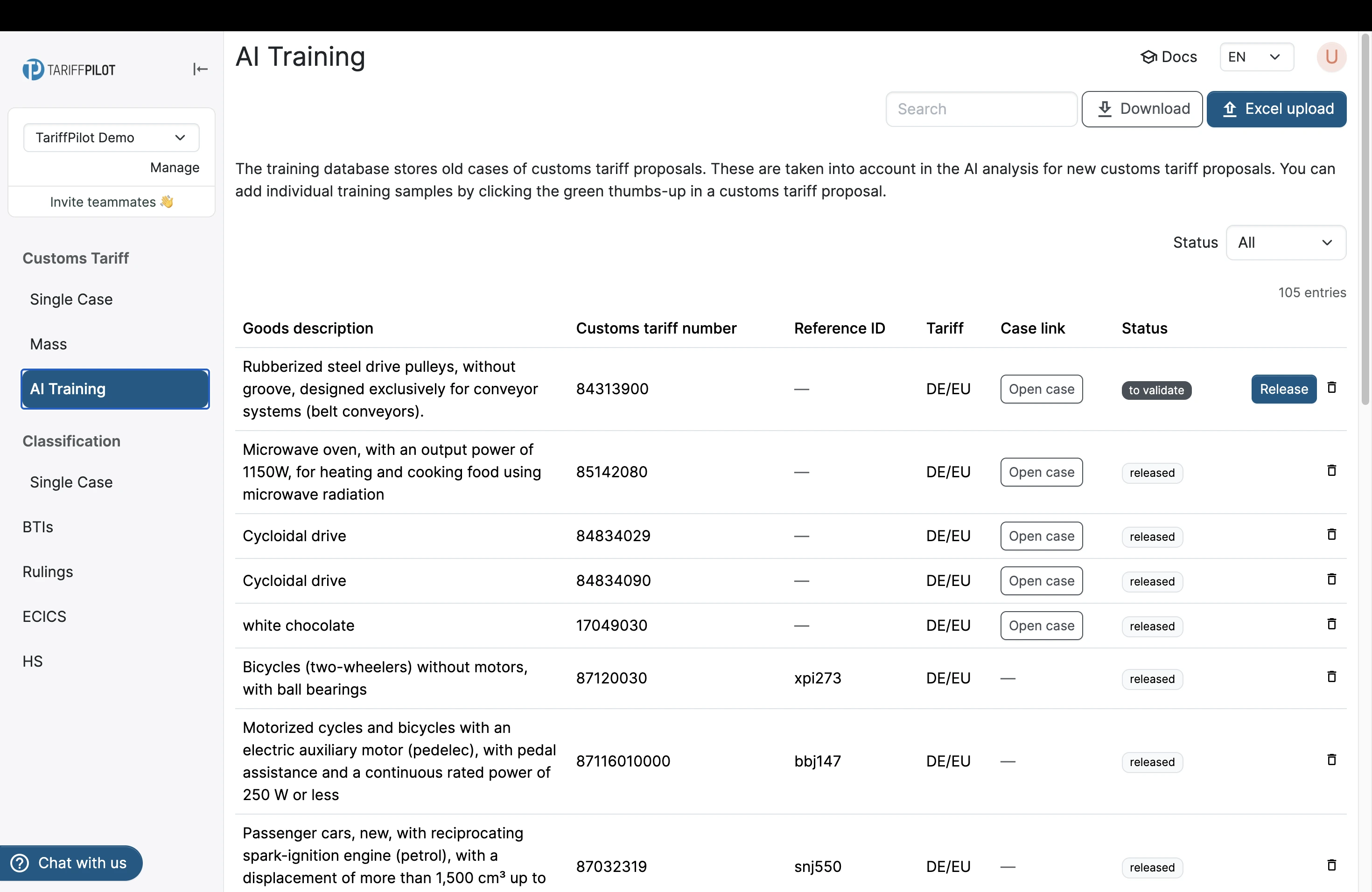
Each row shows:
| Column | Contains |
|---|---|
Goods description | the product description the case was stored with |
Customs tariff number | the confirmed customs tariff code |
Reference ID | your own reference, if one was supplied on import |
Tariff | the tariff system the case applies to, for example DE/EU |
Case link | Open case jumps to the source proposal, if the case came from feedback |
Status | to validate or released |
Depending on your role, a pending row also carries a Release button, every row a delete icon, and the header a Download button to export the list.